License Activation and API Configuration Guide
This section covers the operational configuration for Agent for LabVIEW, including:
License status check and activation
Model API Key configuration and connectivity testing
Initial run verification
It is recommended to execute this section immediately after completing the Installation Guide.
Scope
LabVIEW 2018 and above
Applicable to both 32-bit and 64-bit versions
Toolkit installation completed (can see AI Agent related functions in Functions palette)
Step 1: Check License Status
Open LabVIEW
Go to
Tools -> VIRobotics License Manager -> VIRobotics License Manager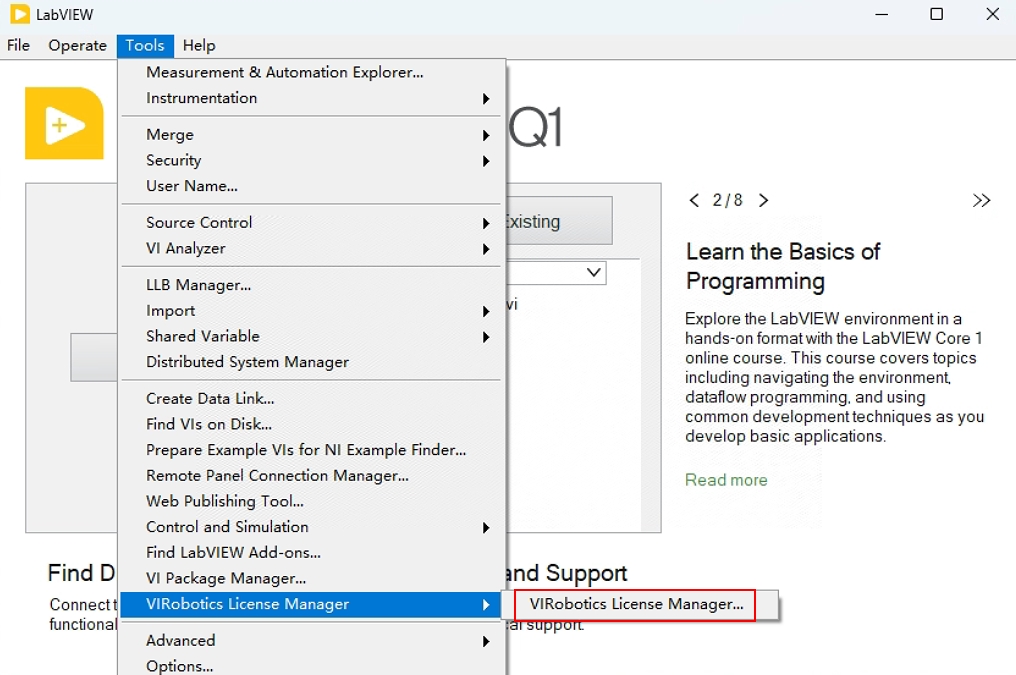
Select key modules (such as
genai,vi_advisor) inProduct NameCheck
License State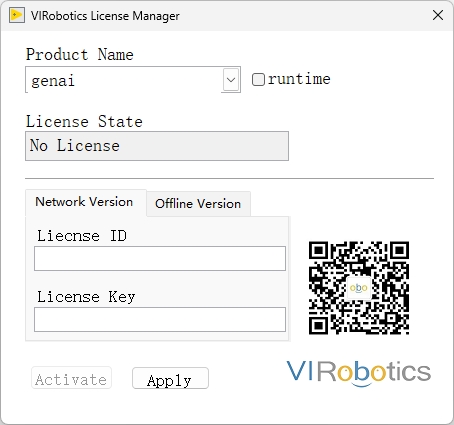
Common status explanations:
No license: Not activated, can apply for trial or formally activateCommunity, xxdays left.: Activated, online subscription versionOffline Permanent Version: Permanent versionexpired: Expired
Step 2: Trial Activation (Recommended for First Time)
If currently No license, you can enable trial first:
Select
genaiandvi_advisorin License ManagerClick
ApplyWait for status to update to
Community, xxdays left.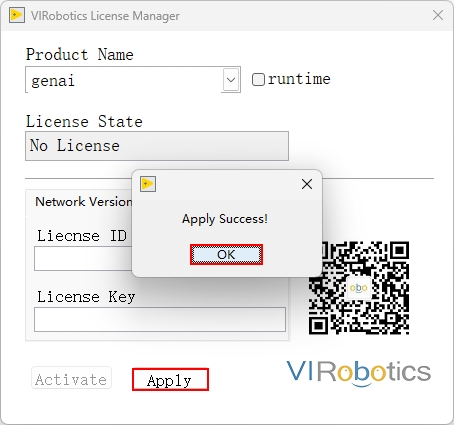
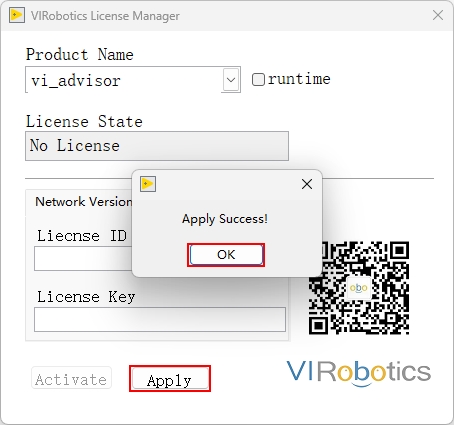
Notes:
Trial usually requires internet connection
Trial is used for quickly verifying installation pipeline and functionality
Step 3: Formal License Activation
When trial ends or entering formal deployment stage, please use formal authorization.
Online Activation
Obtain License ID / License Key
Select target product
genaiorvi_advisorin License ManagerEnter License ID / Key
Click
Activate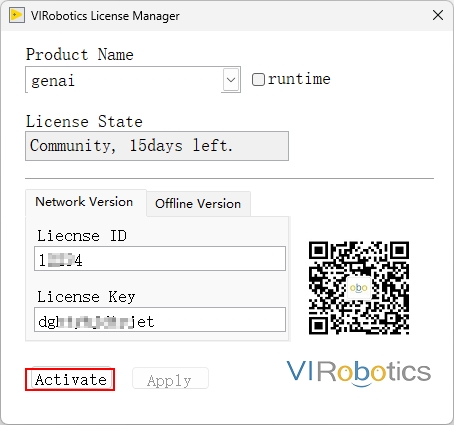
Confirm status changes to Success.
Offline Activation (For environments without external network and locally deployed LLMs)
Open offline activation entry in License Manager:
Offline VersionCopy or record
Computer IDSubmit to technical support to obtain offline authorization file (
.lic)Load
.licand clickActivateConfirm status changes to offline activated
Step 4: Configure API Key (Required for First Use)
4.1 Apply for API Key
The toolkit supports multiple providers including Aliyun, DeepSeek, Baidu, Doubao, Zhipu, Siliconflow, and more. API application entry and key steps for each provider are as follows:
| Provider | Application Entry/Platform | Key Steps Summary |
|---|---|---|
| Aliyun (Bailian) | https://www.aliyun.com/product/bailian | Register/Login Aliyun -> Enter Bailian platform -> Activate service -> Create API Key in API-KEY management page |
| DeepSeek | https://platform.deepseek.com/ | Register/Login -> API Keys on left -> Click Create API Key and copy/save |
| Baidu (Wenxin Yiyan) | https://cloud.baidu.com/product/wenxinworkshop | Register/Login Baidu Cloud -> Enter Qianfan LLM platform -> API Key on left console -> Create API Key |
| Doubao (Volcano Engine) | https://console.volcengine.com/ark/region:ark+cn-beijing/endpoint | Register/Login Volcano Engine -> Create inference endpoint in online inference -> Get endpoint ID (used as API Key) |
| Zhipu | https://open.bigmodel.cn/ | Register/Login -> Enter console or API Key management page -> Add new API Key and copy |
| Kimi | https://platform.moonshot.cn/console/api-keys | Register/Login -> Enter console or "API Key management" page -> Add new API Key and copy |
Recommended priority: Zhipu (GLM), DeepSeek, Kimi.
Note: Please recharge the API so the API can take effect
4.2 Configure API Key in LabVIEW
Open
Tools -> VIRobotics GenAI -> LLM Keys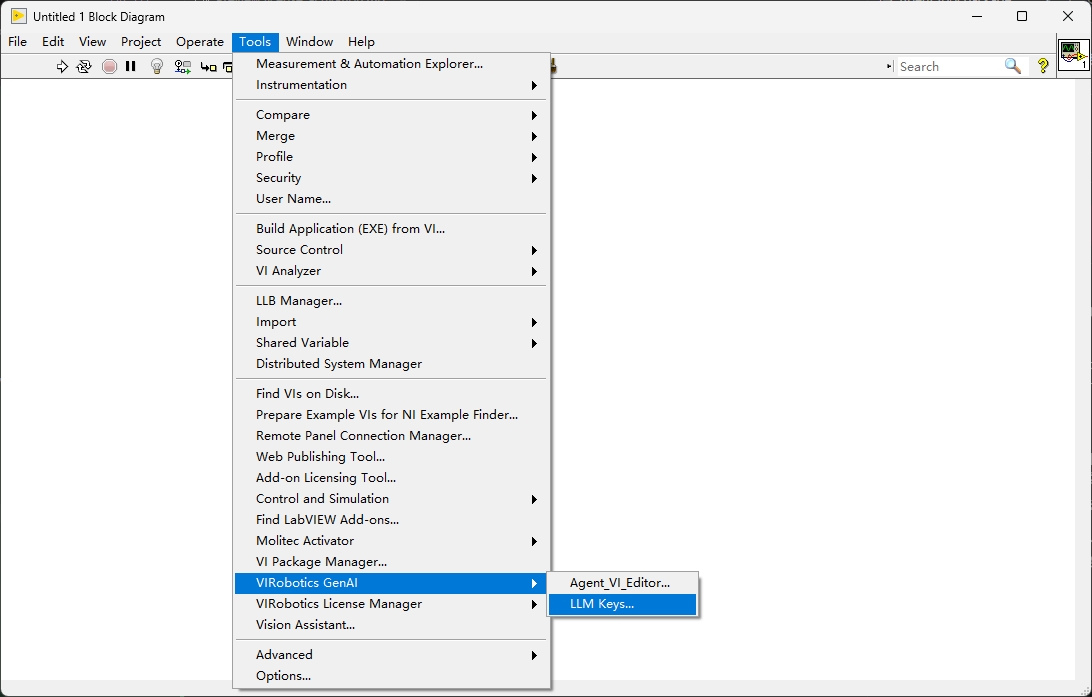
Select model service provider (such as DeepSeek, Zhipu, Kimi, etc.)
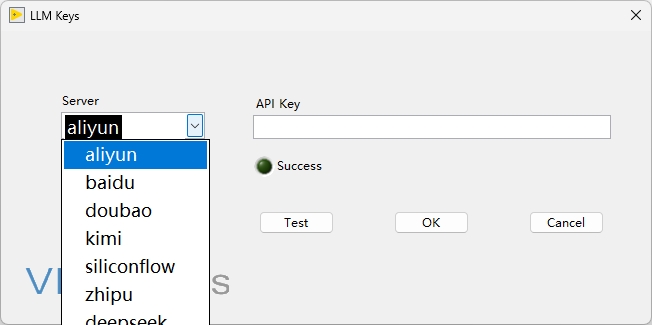
Paste API Key
Click
Testto verify connectivity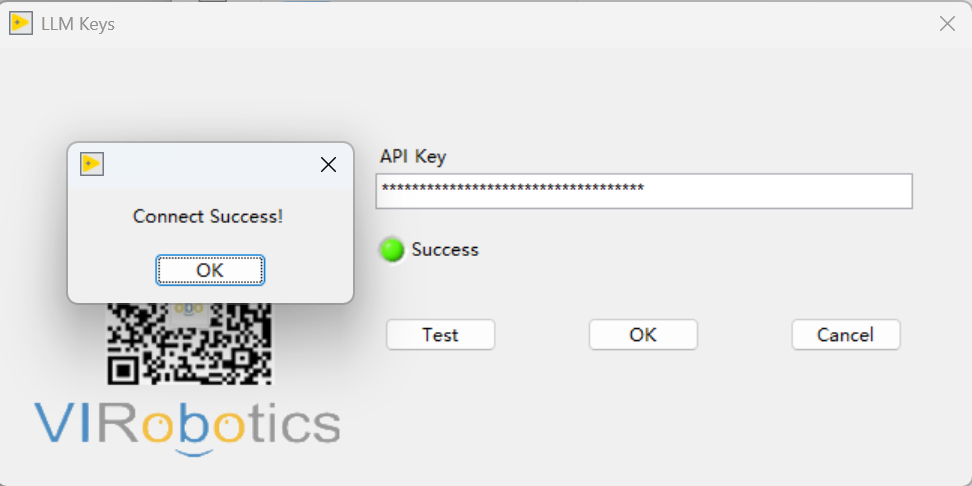
After seeing success prompt, click
OKto write and save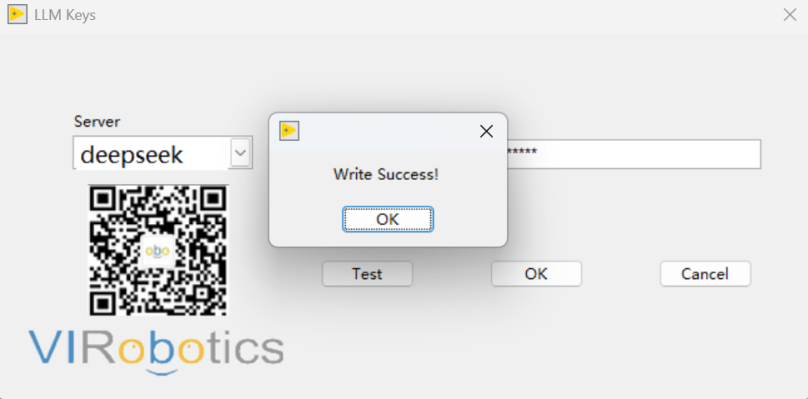
4.3 ImageGeneration (Doubao) Specific Configuration
If you want to use the ImageGeneration module, additionally confirm the following:
Doubao model capabilities activated on Volcano Engine
doubao-seedreammodel is activated and callableDoubao corresponding API key is configured in
LLM KeysAI Vision Toolkit for GPUis installed, download: https://www.virobotics.net/product_AIVT_GPU
It is recommended to first verify API connectivity using basic chat examples, then proceed to ImageGeneration examples.
Step 5: Initial Run Verification
After completing activation and Key configuration, immediate verification is recommended:
Open
Help -> Find ExamplesNavigate to
Directory Structure -> VIRobotics/AI Agent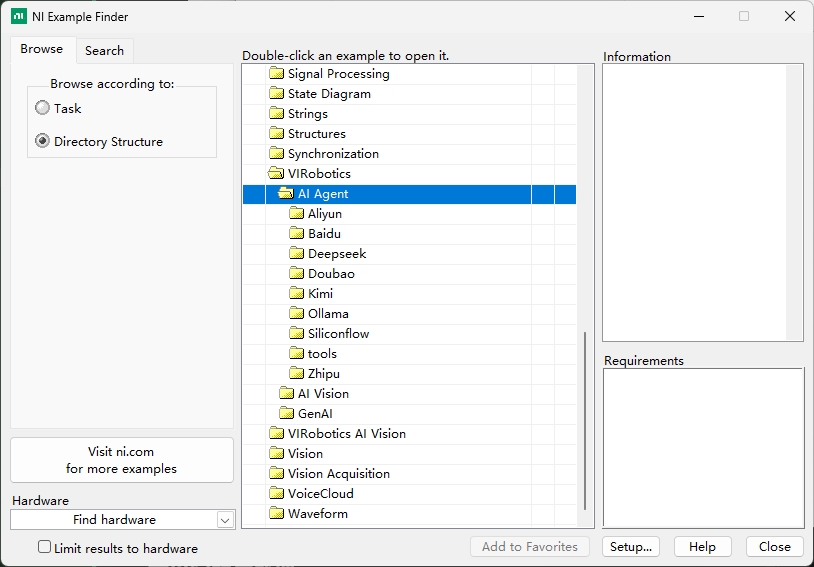
First run basic chat example basic.vi, then run complete examples (context/streaming/tool calling)
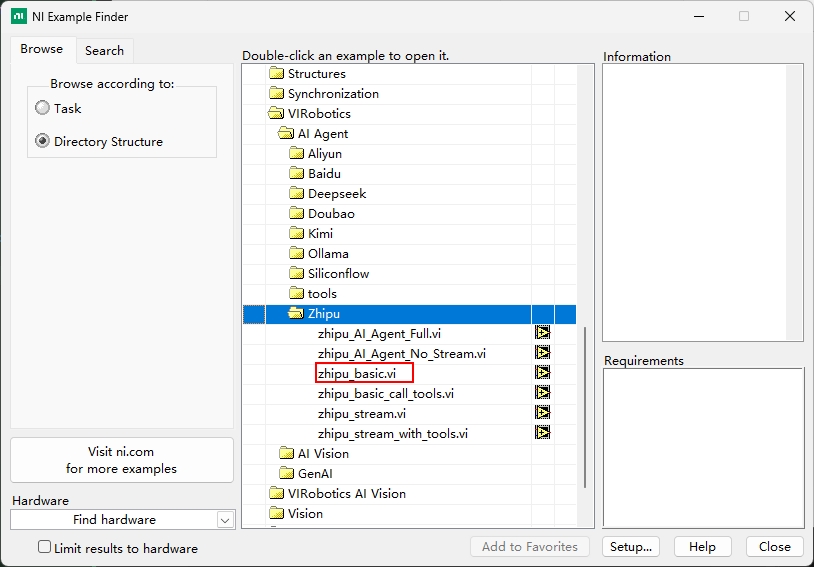
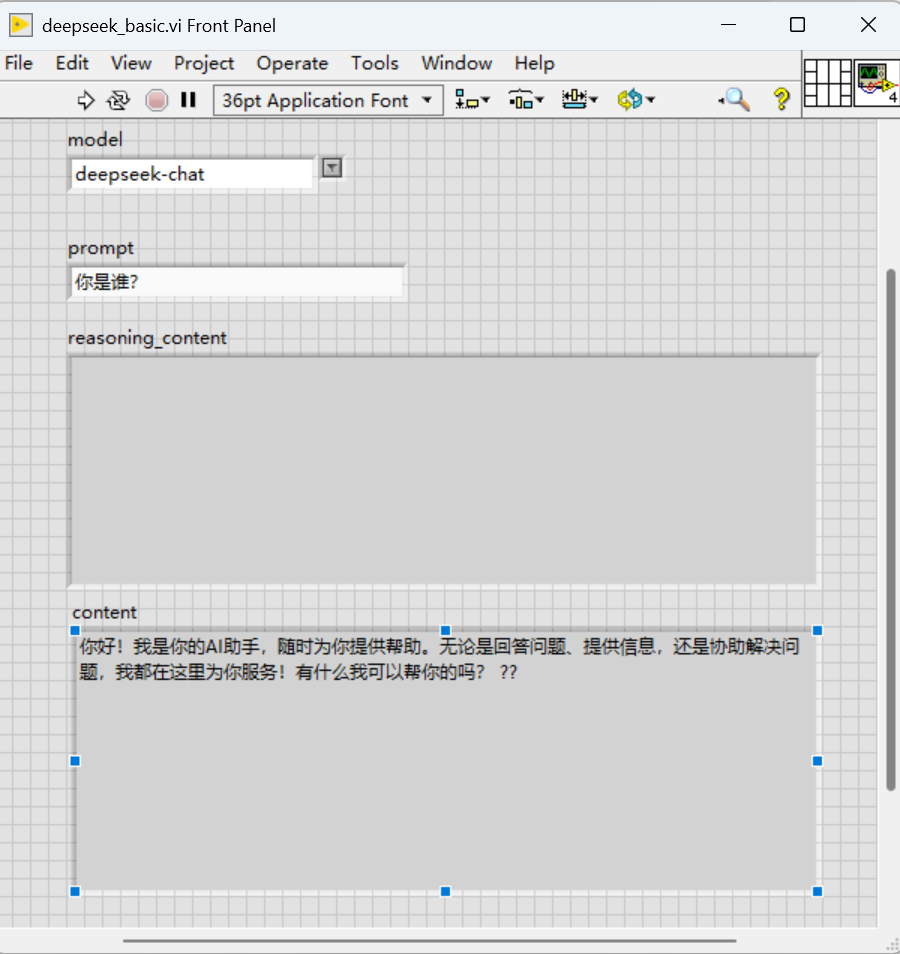
Verification success criteria:
Can normally return model responses
No License errors
No API authentication errors
Common Issues and Handling
1) Status is always No license
Troubleshooting order:
Confirm correct Product Name is selected (such as
genai)Click
Applyand wait for status refreshCheck network connectivity (for online activation/trial)
If still failing, switch to offline activation process
2) Activated but model calling fails
Usually related to API Key, troubleshooting order:
Is Key copied completely (no spaces, no truncation)
Does service provider account have available quota and permissions
Does currently selected provider match Key
Is network/proxy/firewall blocking calls
3) Test fails or times out
Switch network and retry first
Try other models from the same provider
Check if local time is abnormal (related to certificate verification)
Record error message and contact technical support
Technical Support
For activation or API configuration issues, please contact:
Technical Support Email: support@virobotics.net
Website: https://www.virobotics.net
QQ Technical Group: 664108337